Translate a selection
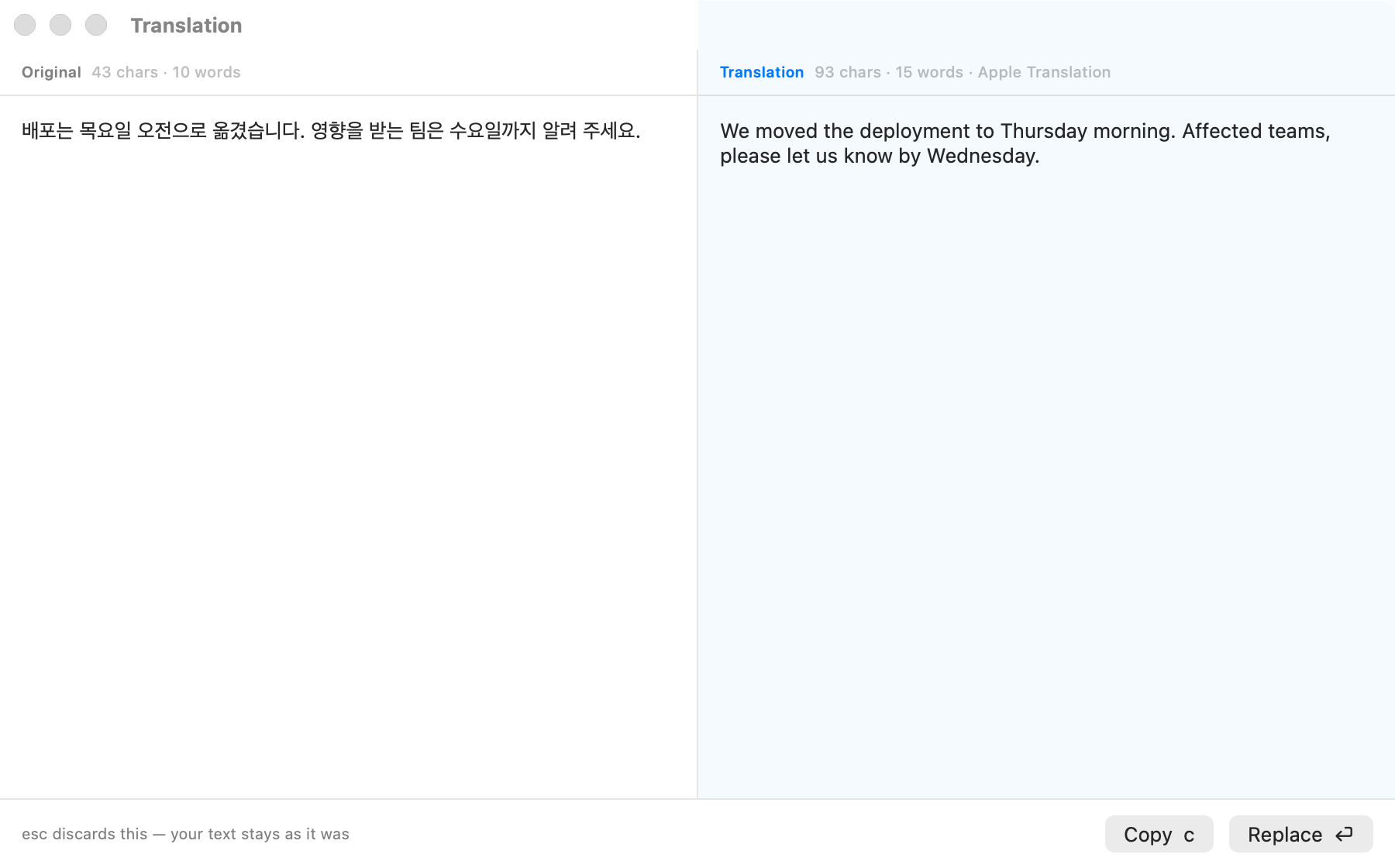
Select text and press ⌘C twice quickly. Sogon translates it and shows the result in a window. Korean goes to English and English to Korean. The default engine is Apple Translation, which runs on this Mac, so nothing leaves the Mac and no LLM is needed.
Setup
- Turn on
Translate the selection by pressing ⌘C twicein Settings → General → External Tools. It is off by default. - Check
Translation enginein the same place.Apple Translation (this Mac)(default): download the Korean·English language pack once. You can get it ahead of time withDownloadon theKorean·English language packrow right below; otherwise a download window appears on your first translation, and the selection is translated as soon as it finishes. After that it works offline. It needs macOS 26 or later; older systems translate with the LLM.- macOS manages the pack, so System Settings → General → Language & Region → Translation Languages works too. If you already downloaded it for the Translate app or Safari, there is nothing to download.
LLM provider: finish Connect an LLM. It uses the same provider and key as correction and reads mixed-language text in context better.
When on, Sogon watches every ⌘C. With Apple Translation nothing leaves this Mac. If you switch the engine to an LLM provider, the second ⌘C sends the copied text to that provider, so press ⌘C only once when copying passwords or private notes.
Translating
- Select the text.
- Press
⌘Ctwice quickly. The interval follows the macOS double-click speed setting. - Check the original and the translation in the window.
- Choose one of the following.
| Key | Action |
|---|---|
c or Copy | Put the translation on the clipboard. Your selection stays as it was. |
⏎ or Replace | Replace the text you selected with the translation. This cannot be undone. |
esc | Close the window. The original stays as it was. |
⌘C isn't intercepted, so after the two presses your clipboard still holds the original. The window also shows character and word counts and the engine used. With an LLM it also shows the actual model name and input→output tokens. Apple Translation doesn't count tokens.
Translating a screen region (⌃⇧E)
Use it for text in images, PDF figures, or anything on screen you cannot select. Sogon reads the text in the region on this Mac (OCR) and translates it with the Translation engine above.
- Turn on
Translate a screen region with ⌃⇧Ein Settings → General → External Tools. It is off by default. - Press
⌃⇧Eand a crosshair appears. Drag over the text you want translated.esccancels. - The translation window shows the text that was read and its translation.
Copyputs the translation on the clipboard. There is noReplace, since nothing was selected.
- Grabbing a whole app window full of buttons and menus scatters short labels and makes the translation awkward. Pick a tight region around the paragraph.
- Lines of one paragraph broken by line wraps are joined before translating.
- Over 1,500 characters, Sogon does not translate and asks for a smaller region.
- Successful translations go to the same translation history as
⌘Ctwice. - The first use may ask for Screen Recording permission. Region selection uses the macOS screenshot tool.
Translation history
Successful translations are kept in Settings → History → Translations.
- The original, the translation, the time, the model, and the tokens are saved.
- Sogon deletes records automatically after 7 days. Within those 7 days, it keeps only the latest 100.
- Turning translation off stops new records.
- Delete one at a time or all at once with
Clear all translation history. Both ask for confirmation.
If it does not work
| Symptom | What to check |
|---|---|
| Nothing appears after pressing twice | Check that the translation switch in External Tools is on and that text is actually selected. With no selection there's nothing to copy, so nothing is translated. |
| The download window could not finish | Press Try again in that window, or download from Download in Settings → General → External Tools, or from System Settings → General → Language & Region → Translation Languages. |
No LLM provider is set up | Appears when the engine is LLM provider. Choose a provider in Settings → LLM, or switch the engine to Apple Translation. |
| Long text is not translated | The limit is 1,500 characters. Select shorter parts. |
You can do the same translation, with the same engine, without turning on ⌘C twice by pressing 3 in the ⌃⇧C grid. With Apple Translation, 3 appears even without an LLM. See Act on a selection.