Snippets
Snippets save you from retyping the same account number, address, introduction, or template. They skip correction and go in exactly as saved.
Saving
There are two ways:
- Select the text, press
⌃⇧C, then pressw(Save as snippet) in the grid. Enter a name and save. - In Settings → Snippets, press
Addand write a name and body.
Turn on Suggest a name in Settings → Snippets to let the LLM propose names. It is off by default. When on, the first 500 characters of the text are sent to your LLM provider.
Inserting
- Put the cursor where the text should go.
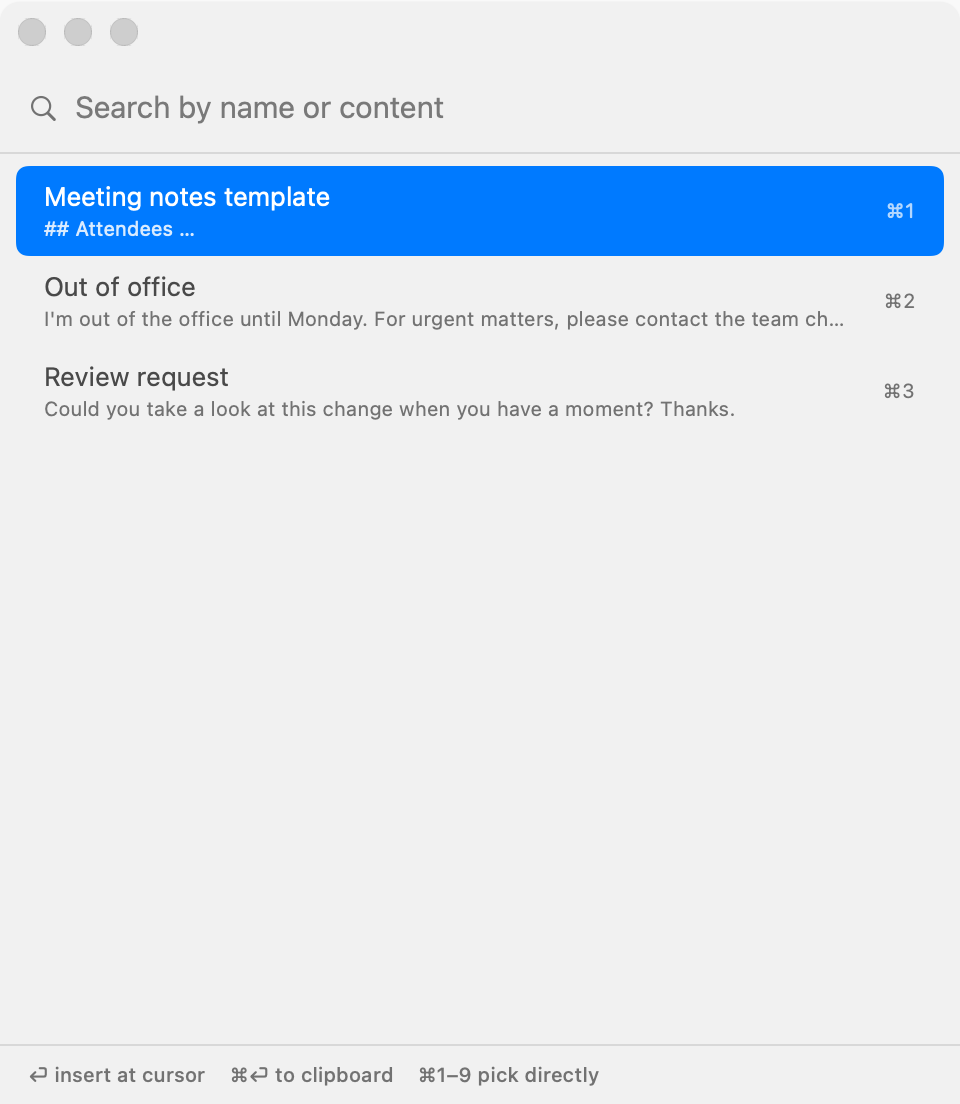
- Press
⌃⇧V. - Type part of the name or body to filter.
- Choose with
↑/↓and press⏎.
| Key | Action |
|---|---|
⏎ | Insert the selected snippet at the cursor. |
⌘1–⌘9 | Insert the 1st to 9th visible item directly. Numbers follow the filtered list. |
⌘⏎ | Put it on the clipboard instead of the cursor. Use it where pasting cannot reach, such as remote desktops. |
esc | Close without inserting. |
Snippets skip the dictation queue, so they go in immediately even during a meeting recording. Sogon doesn't add them to the dictation history.
Managing
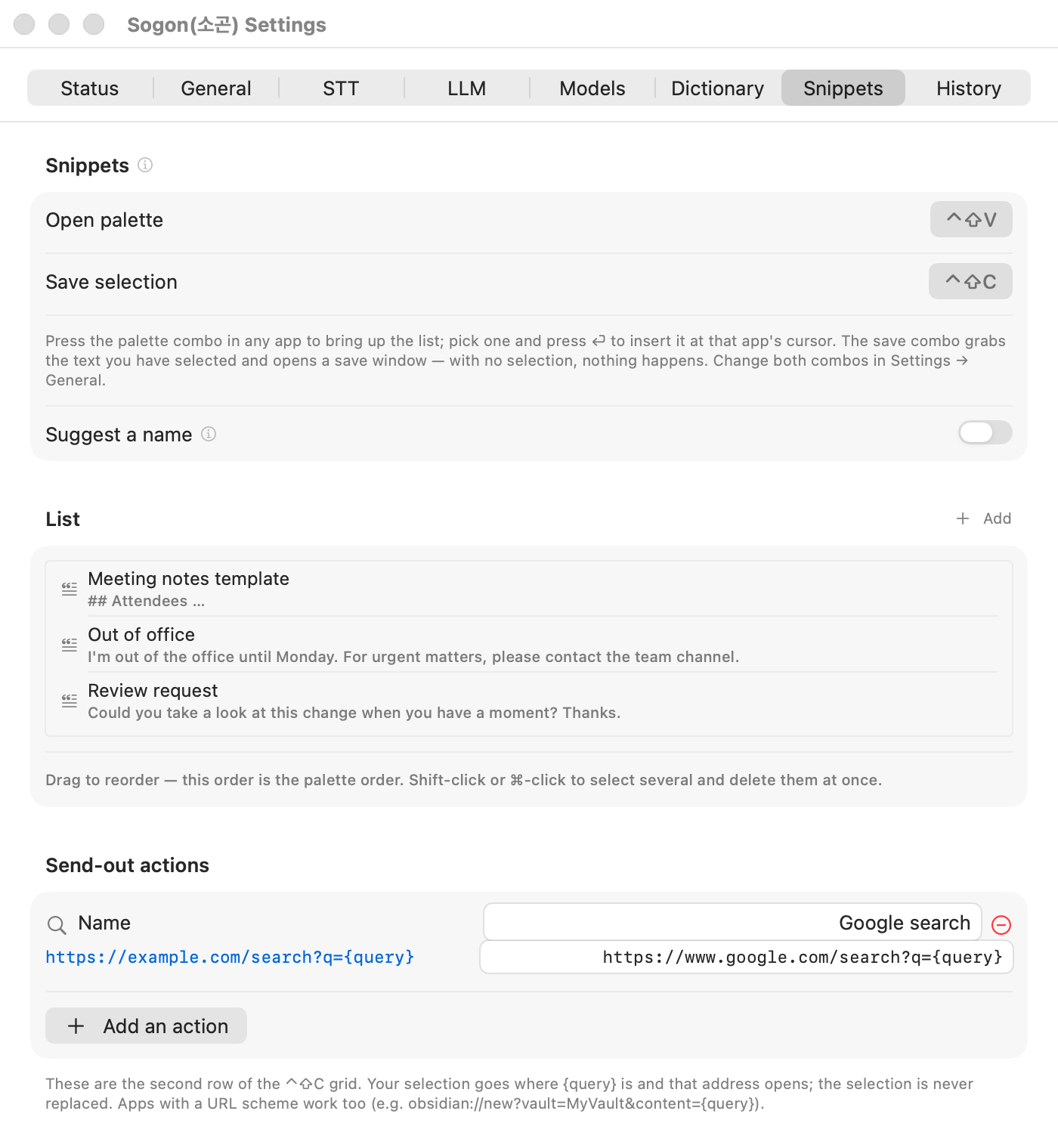
- In the Settings → Snippets list, select several with
⇧-click or⌘-click and press⌫to delete them together. The confirmation shows how many will be deleted. - The list keeps the order you set. Sogon never reorders it by usage.
- Several snippets can share a name.
- Change the shortcut in Settings → General → Recording →
Snippet Shortcut.
Sogon is not a clipboard history app. It never collects what you copy; it only keeps the phrases you save.