Your first dictation
Dictate one sentence into Notes or a text editor. The default recording mode is Push to Talk: Sogon records while you hold the shortcut and transcribes when you release it.
Try it
- Open a text editor and click where the text should go.
- Press and hold
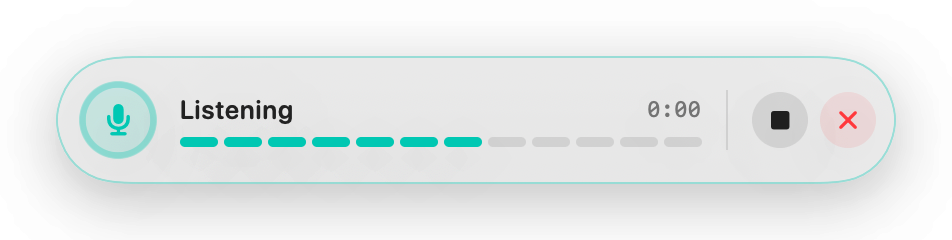
⌃⇧R(Control + Shift + R). - Watch the Voice Bar appear at the bottom center of the screen and check that the input level moves.
- Say "The meeting starts at three today."
- Release the keys.
- The Voice Bar shows the transcribing state and disappears, and the text appears at the cursor.
The first recording takes a few extra seconds while the speech model loads into memory. Later recordings are faster.
Checking the result
- If the sentence is in your editor, it worked.
- Inserted text lives in Settings → History → Dictation. Click the menu bar icon to see it under
Last Transcriptionin the quick controls. - Without an LLM, the transcription goes in as is. To fix spelling and terms, connect an LLM.
Changing how recording works
If you prefer to press once to start and again to stop, change Settings → General → Recording → Recording Mode to Toggle. Change the shortcut itself in Global Shortcut in the same section.
To use only the mouse, right-click the menu bar icon. Right-click always starts on the first click and stops on the second, whatever the recording mode.
Discarding what you said
To keep the result out of your document during recording or transcription, press ⌃⇧⌫ (Control + Shift + Delete) or the cancel button on the Voice Bar. esc is passed through to other apps, so it doesn't cancel.
If it does not work
| Symptom | What to check |
|---|---|
| Pressing the shortcut does not show the Voice Bar | In Settings → General → Permissions, check that Accessibility shows Granted. If you just granted it, relaunch Sogon. |
| Nothing happens only in a terminal such as iTerm2 | Secure Keyboard Entry in that app blocks global shortcuts. Turn it off there. |
| The Voice Bar appears but the input level doesn't move | In Settings → General → Input, check that Capture my microphone is on and the macOS input device is right. |
| Text is only on the clipboard, not at the cursor | You may not have finished the tutorial with Get started. Open Settings → General → Tutorial → Show again, go to the last screen, and press Get started. |
| Text goes into a different app | With several displays, clicking the menu bar on another display makes that display's app the target. Use the shortcut, or click the menu bar on the display where the text should go. |
More symptoms are covered in Troubleshooting.
Next: Connect an LLM