Act on a selection
Select text and press ⌃⇧C to open a grid of actions. Pick one with a single key. Actions that rewrite the text show the result first and ask before replacing.
Try it
- Select the text.
- Press
⌃⇧C. - Check that the top of the grid shows the first line of the captured text and its character, word, and line counts.
- Press the key for the cell you want. Arrow keys and
⏎work too.
If nothing is selected, the grid doesn't open. Sogon briefly uses the clipboard to capture the selection and restores it right away.
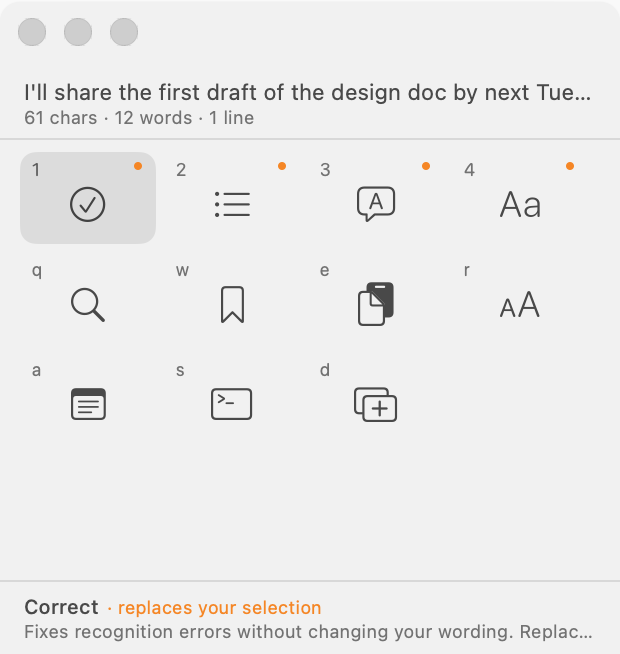
Layout
| Row | Key | Action |
|---|---|---|
| First | 1 | Correct (Standard mode) |
2 | Structure | |
3 | Translate (Korean↔English) | |
4 | Aa conversions (13 kinds: case, spacing, camelCase, and more) | |
| Second | q | Google search (the first URL action) |
w | Save as snippet | |
e | Copy to clipboard | |
r | Large type | |
| Third | a | Send to Notes |
s | Ask a CLI (kiro-cli, claude, codex) | |
| after that | URL actions you added and prompt templates enabled as actions |
The same key positions work while a Korean input source is active (2-Set Korean layout). Cells that can replace your selection carry a small orange dot.
Reviewing rewrites
1 Correct, 2 Structure, 3 Translate, and template cells go through the LLM. When the result arrives, a comparison window opens.
| Key | Action |
|---|---|
⏎ or Replace | Replace the selection with the result. This cannot be undone. |
c or Copy | Put the result on the clipboard only. |
esc | Discard. The original stays as it was. |
Pressing esc while waiting discards the request, and a late response never overwrites your text. The translate cell also shows the model and tokens in the result window.
Without an LLM provider, 1 becomes Set up an LLM and 2 and 3 are empty. Aa conversions work without an LLM.
Large type
r shows the selection full screen in a monospaced font. It helps you tell l, 1, I and 0, O apart when copying a code or account number to another device. Resize with +/− and reset with 0. Any key or click closes it.
Sending text elsewhere
aSend to Notes: creates a new note in the default Apple Notes folder. The first use asks for the Automation permission.sAsk a CLI: in the sub-grid, choose1kiro-cli,2claude, or3codex. A new iTerm2 window opens and the tool starts by reading your selection. iTerm2 and that CLI must be installed.- URL actions: add them with
New actionunder Settings → Snippets → Send-out actions. The selection replaces{query}in the address, for exampleobsidian://new?vault=MyVault&content={query}.
Adding templates to the grid
Turn on Use as a selection action while editing a prompt template in Settings → LLM, and the template appears after the third row. They're all off by default. The built-in templates were written for dictation, so running Meeting notes on a single paragraph turns that paragraph into meeting notes.
Change the shortcut in Settings → General → Recording → Selection Action Shortcut.