First launch and permissions
The tutorial window opens on first launch. Go through the eight steps and press Get started on the last screen.
Get started at the endIf you close the tutorial window with its close button, setup counts as unfinished. In that state dictated text is only copied to the clipboard instead of being inserted at the cursor, and the tutorial opens again on the next launch. Skipping individual steps with Skip is fine.
The steps at a glance
| Step | Screen title | What to do |
|---|---|---|
| 1 | A menu bar app that turns speech into text | Read the introduction and press Next. |
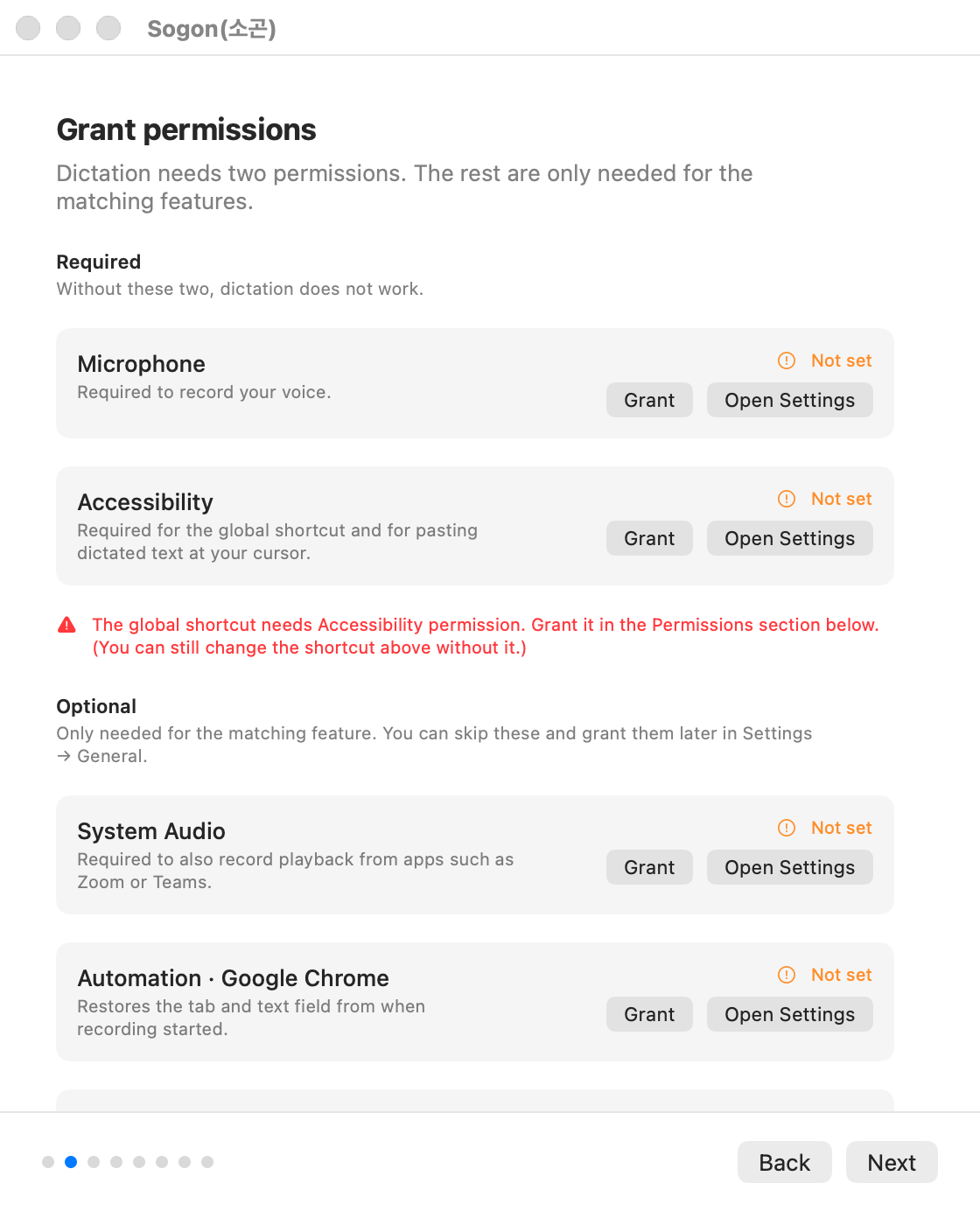
| 2 | Grant permissions | Allow Microphone and Accessibility. |
| 3 | Download the speech model | Pick a model. Large v3 Turbo is the recommended default. |
| 4 | Groq API key (optional) | Only for cloud speech recognition. Usually leave it blank. |
| 5 | LLM correction (good to know) | An overview of correction engines and modes. You set this up later. |
| 6 | Where should the app appear | Choose the menu bar, the Dock, or both. |
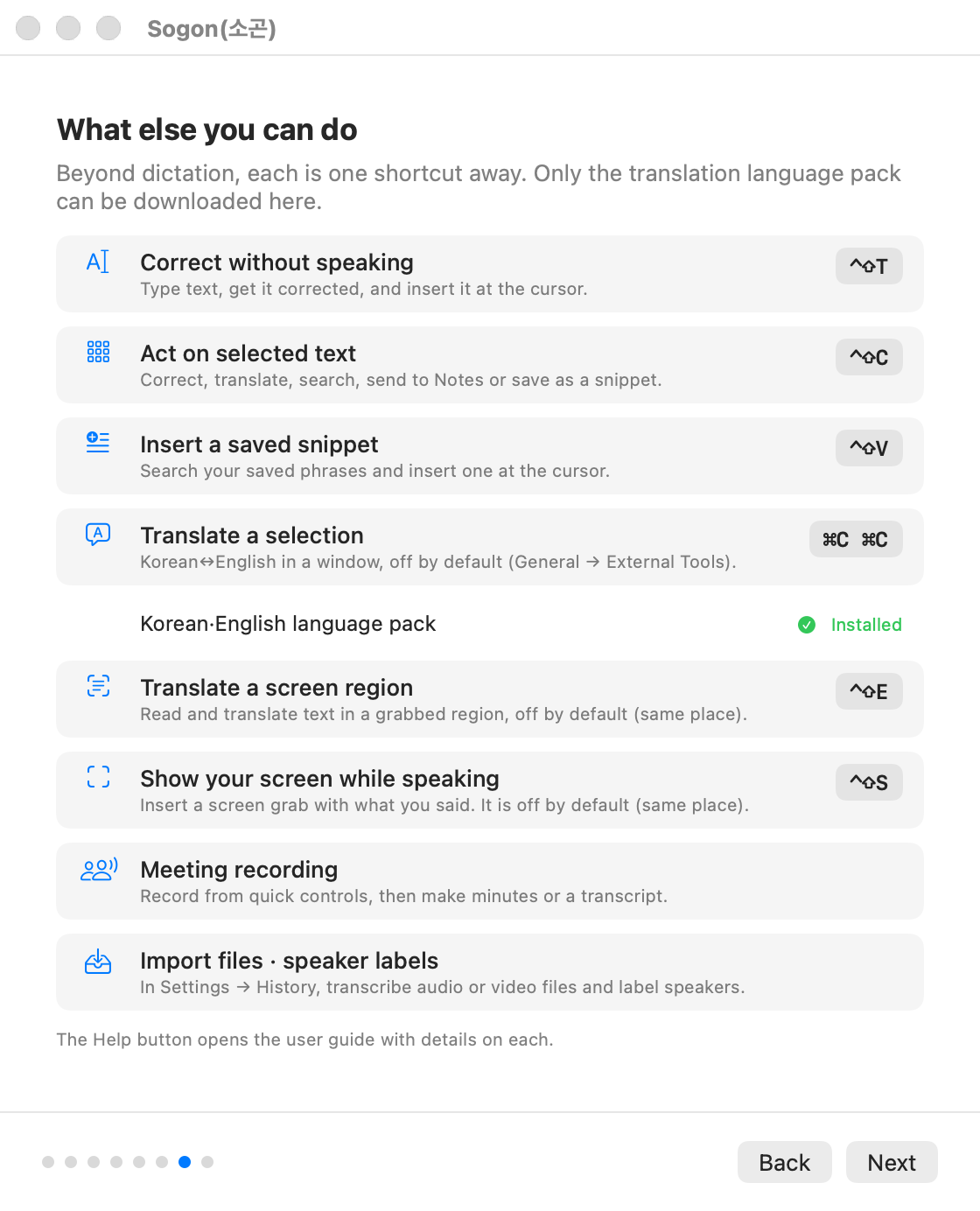
| 7 | What else you can do | One screen with the features beyond dictation and their shortcuts. Nothing to set up. |
| 8 | You are set | Check the recording shortcut and readiness, then press Get started. |
Granting permissions
Two permissions are required. The rest are only needed for specific features.
| Permission | Why | Without it |
|---|---|---|
| Microphone | Recording your voice | Recording does not start. |
| Accessibility | Global shortcuts and pasting at the cursor | Shortcuts do nothing and text is not inserted. |
| System Audio (Screen Recording) | Recording sound played on your Mac, such as the other side of a call | Only the microphone is recorded. |
| Automation · Google Chrome / iTerm2 | Returning to the original tab, field, or terminal session after recording | Sogon only activates the app and pastes. |
- On the permissions screen, press
Grantnext toMicrophoneand allow it in the macOS dialog. - Press
Grantnext toAccessibility. When System Settings → Privacy & Security → Accessibility opens, turn Sogon on. - Return to the tutorial and check that both items show
Granted.
Sogon only asks for permissions when you press a button. Launching the app or starting a recording never opens a permission dialog. To check later, open Settings → General → Permissions.
Downloading a model
Picking a model in step 3 starts the download right away. You can press Next while it downloads, and closing the window doesn't stop it.
| Model | Size | Choose it when |
|---|---|---|
| Large v3 Turbo compressed | about 632MB | You want the quickest start and to save disk space |
| Large v3 Turbo | about 1.6GB | You are not sure (app default) |
| Large v3 | about 3.1GB | Accuracy matters more than speed |
If you skip without picking a model, the default model is downloaded on your first recording. You can change models later in Settings → STT.
Reading the readiness list
The Readiness list on the last screen shows the microphone, the global shortcut, and the speech model. When all are green, Everything is ready appears.
If you see Permission is granted but the shortcut listener is not attached yet, press Get started, then quit and relaunch Sogon.
Seeing the tutorial again
Open it any time from Settings → General → Tutorial → Show again. It doesn't reset your current settings.
Next: Your first dictation