Correct without speaking
Use this for text you typed or pasted where speaking is not practical. Only speech recognition is skipped; correction, term preservation, and insertion work exactly as in dictation.
Try it
- Click the field where the text should go.
- Press
⌃⇧T. The input window opens. - Type or paste your text.
- Press
⌘Return. - The corrected text lands where your cursor was before the window opened.
esc closes the window without inserting anything. Open text input in the quick controls opens it too.
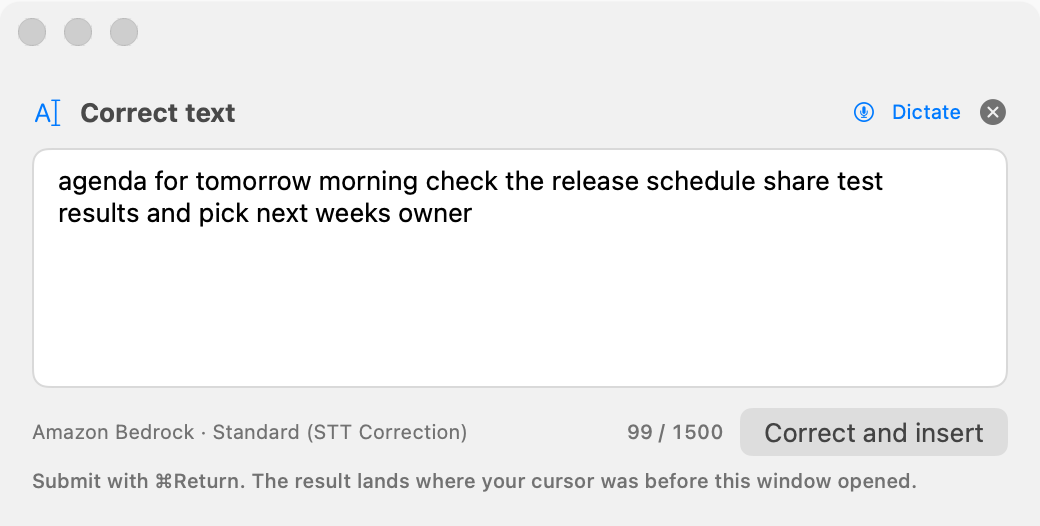
Speaking inside the window
Press the window's Dictate button, or dictate with ⌃⇧R while the window is open, and Sogon appends the transcription to the field. Speak, fix it by hand, then submit with ⌘Return. Text you dictate this way only goes into the field and never touches your clipboard.
Good to know
- The window shows the provider and correction mode that will apply. Change correction settings in Settings → LLM, not in the window.
- If correction is off, the window says
No correction — inserted as-isand inserts the original. - The limit is 1,500 characters. The window shows the count and blocks you from submitting beyond it.
- Change the shortcut in Settings → General → Recording →
Text Input Shortcut.